Migrate from Plex or Jellyfin.
Import movies, TV and music into Pixel Brite. Keep artwork, watched status, resume progress, ratings, favorites and manual playlists, along with your movie and TV matches. Bring available Plex playback history, too.
Before you start
Install Media Server, open its dashboard and sign in as the owner.
Pixel Brite reads a copy of the database. The original stays unchanged, and media files aren’t copied or modified.
- On the same computer: give Media Server read access to your Plex or Jellyfin data and media folders. The importer searches common locations.
- On another computer or in a container: mount the data and media folders where Pixel Brite can read them. Folder paths refer to the Pixel Brite server.
- Using a backup: use a consistent backup, or stop Plex or Jellyfin before copying its data folder. Include artwork and the server identity files so repeat imports recognize the source.
Follow the import wizard
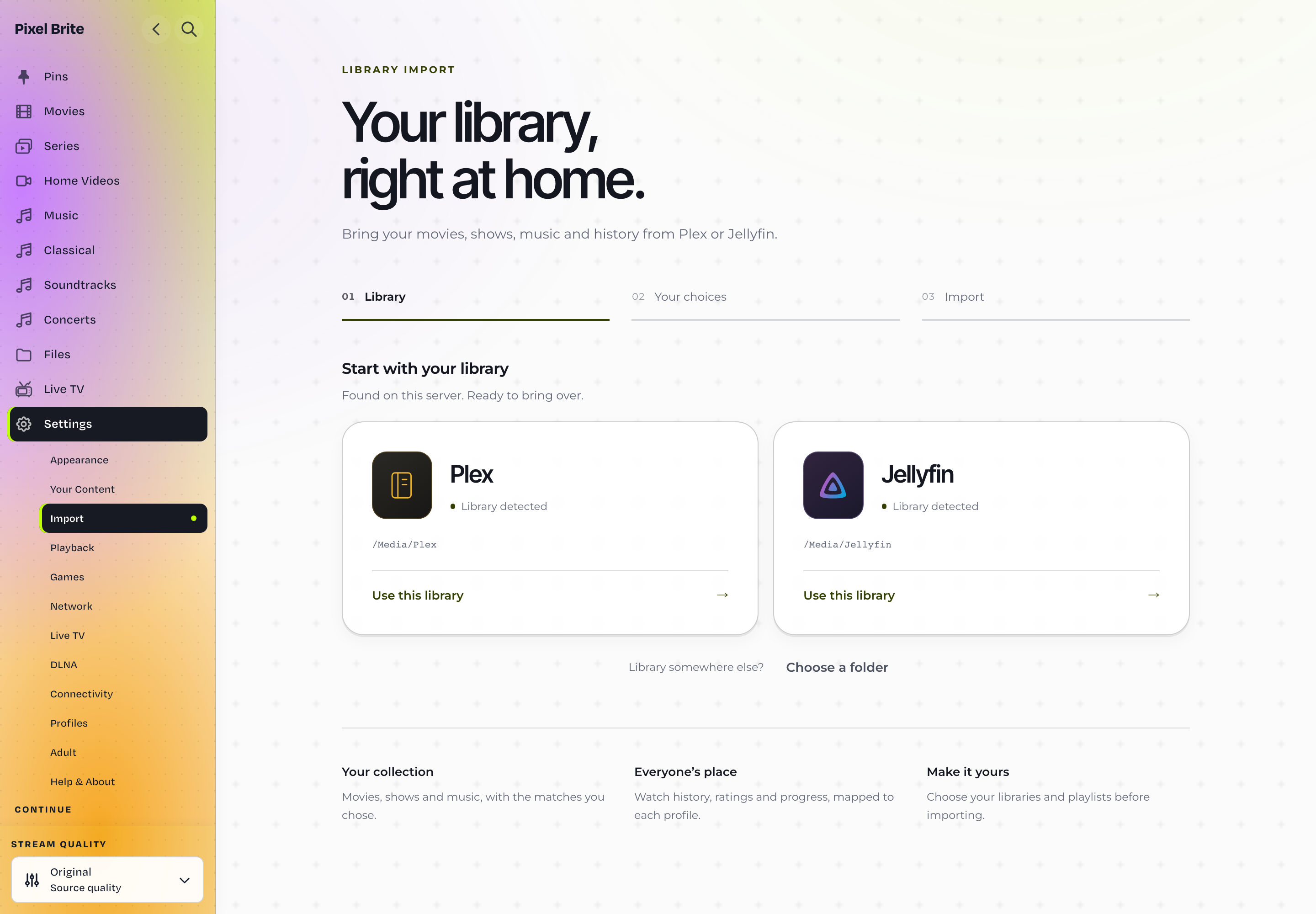
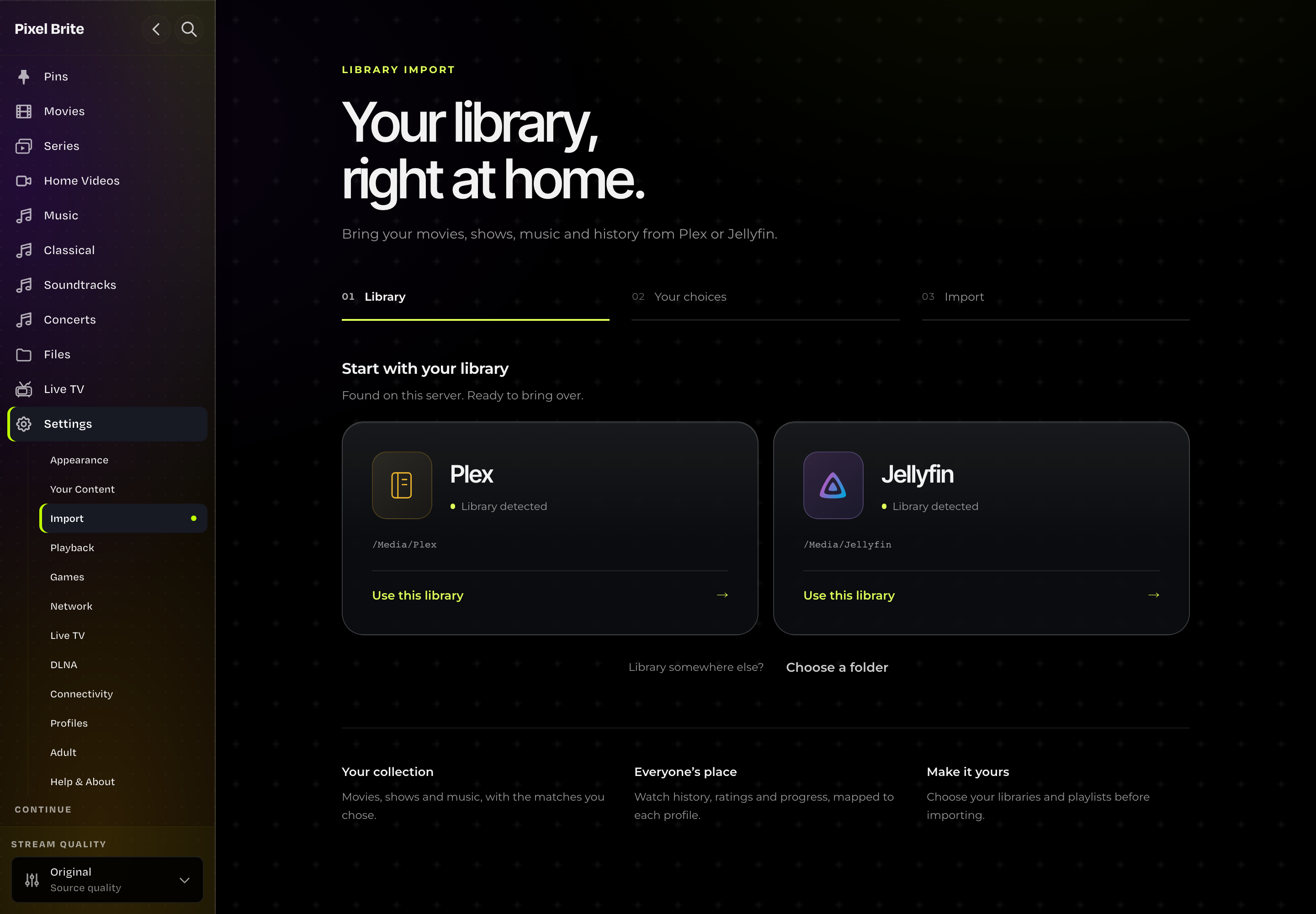
Choose the library we found
Open Settings → Import in the dashboard. Pixel Brite searches common locations and shows the Plex and Jellyfin libraries it finds. Choose one to continue.
Confirm libraries and profiles
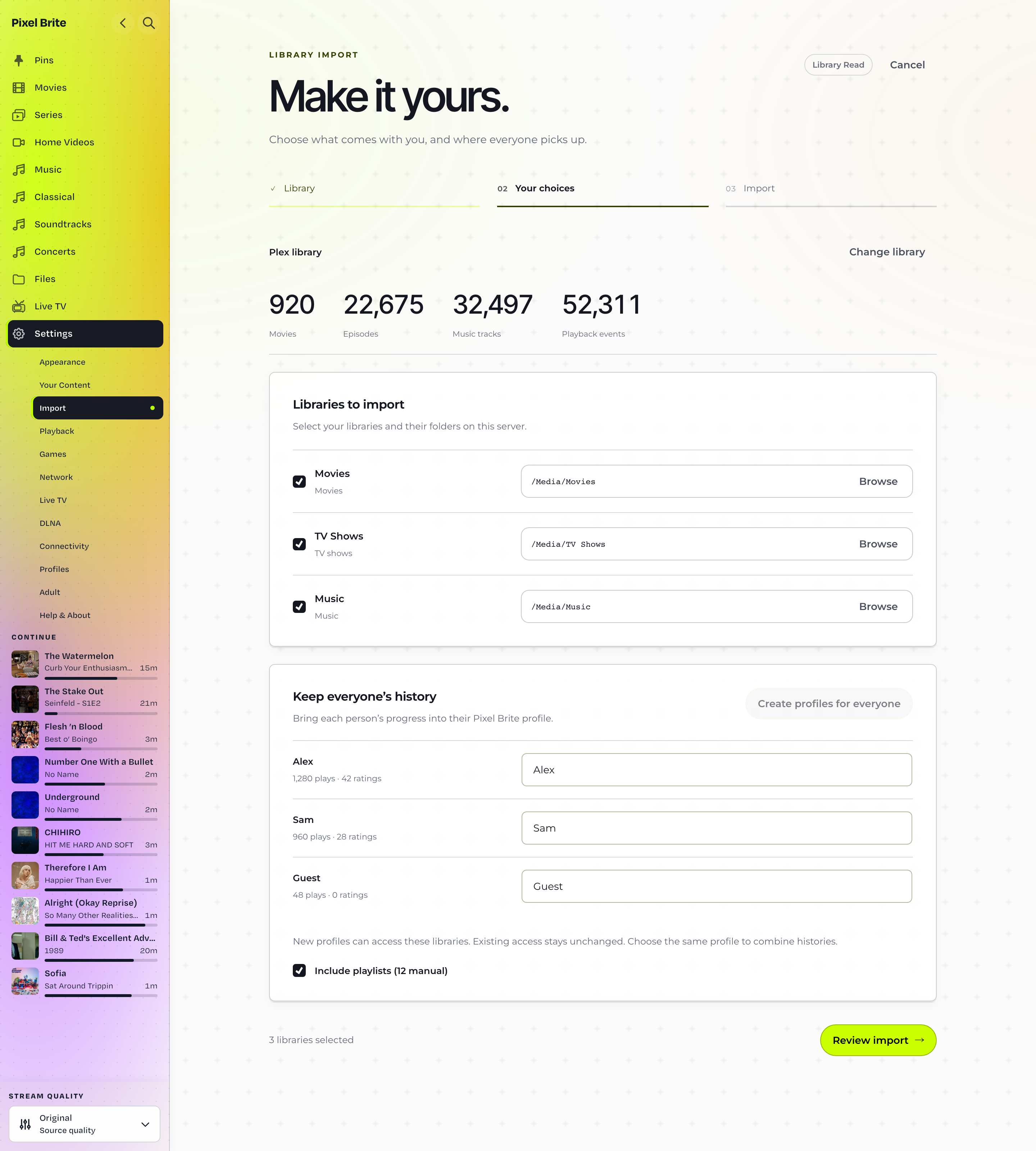
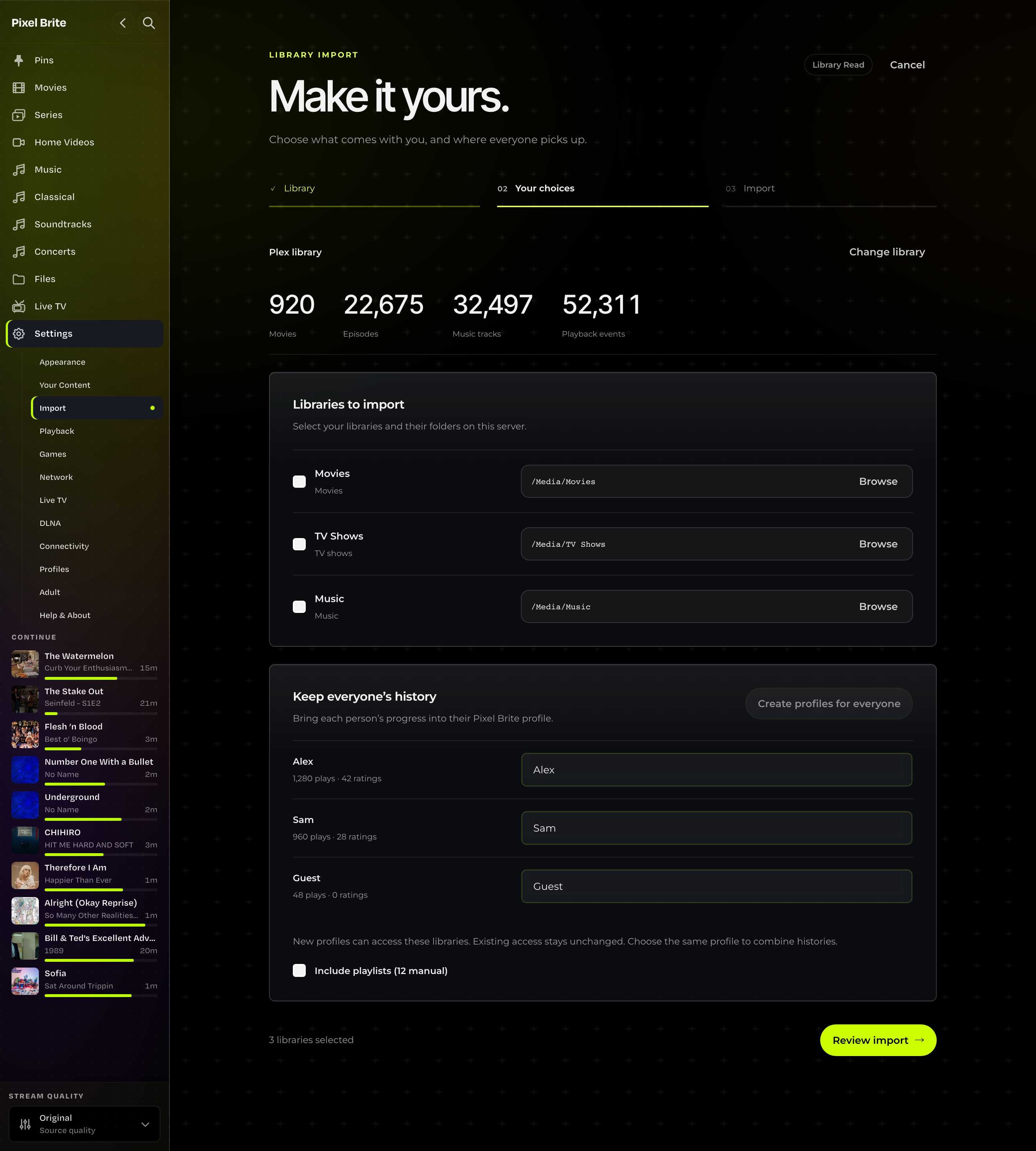
Library folders are filled in. Keep the defaults or change what to import. Choose existing profiles, or select Include everyone to keep each person’s history separate.
Review and import
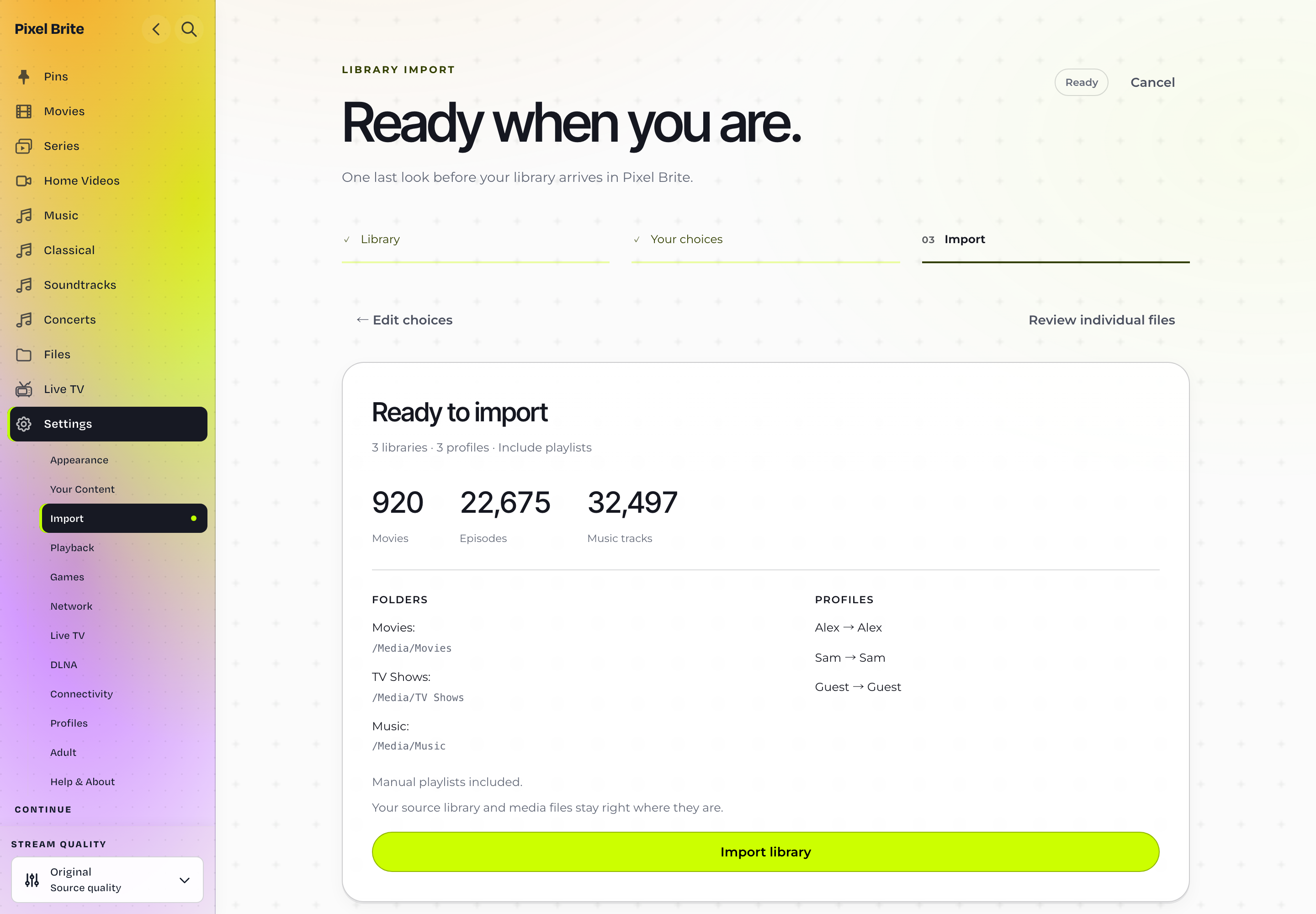
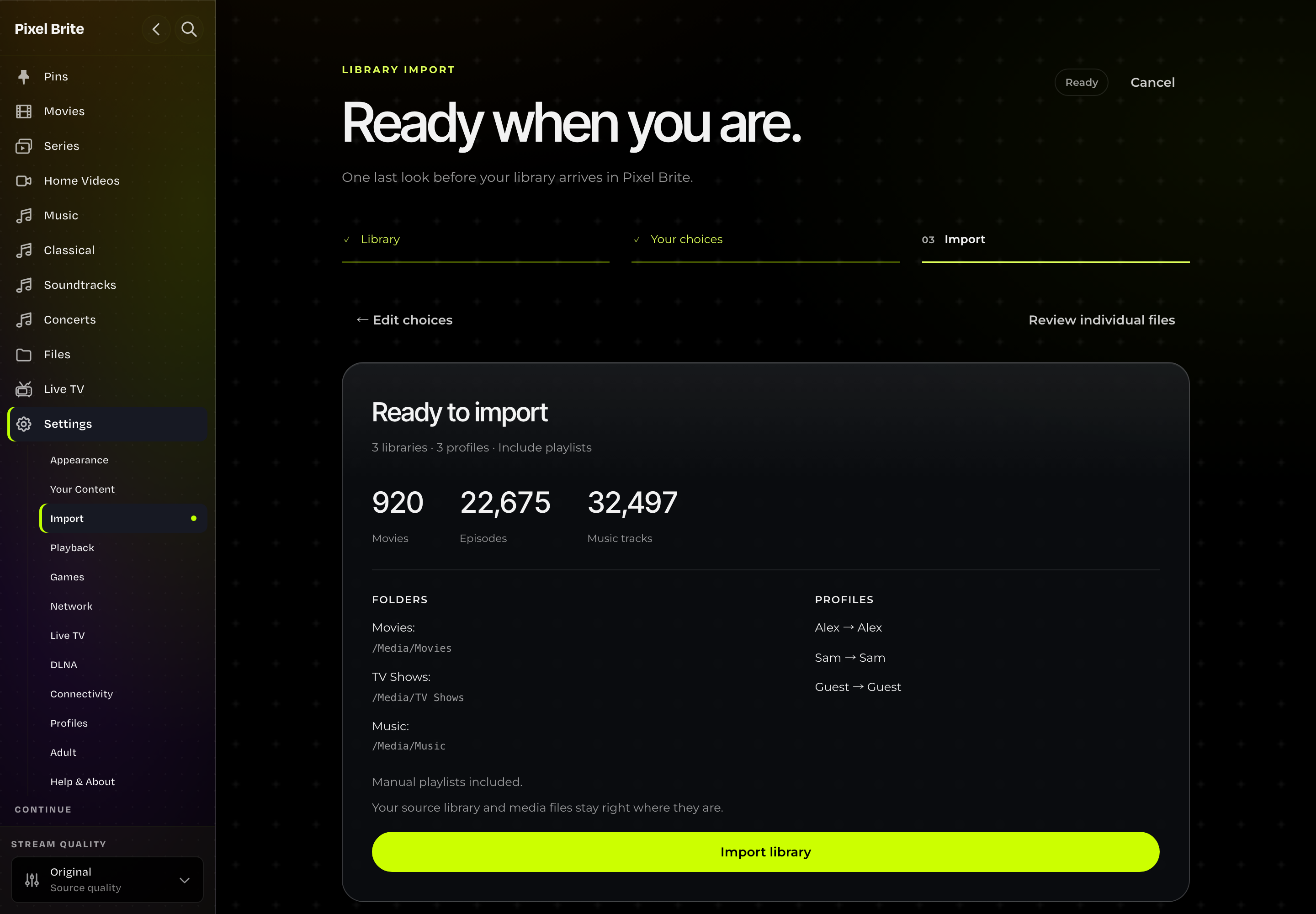
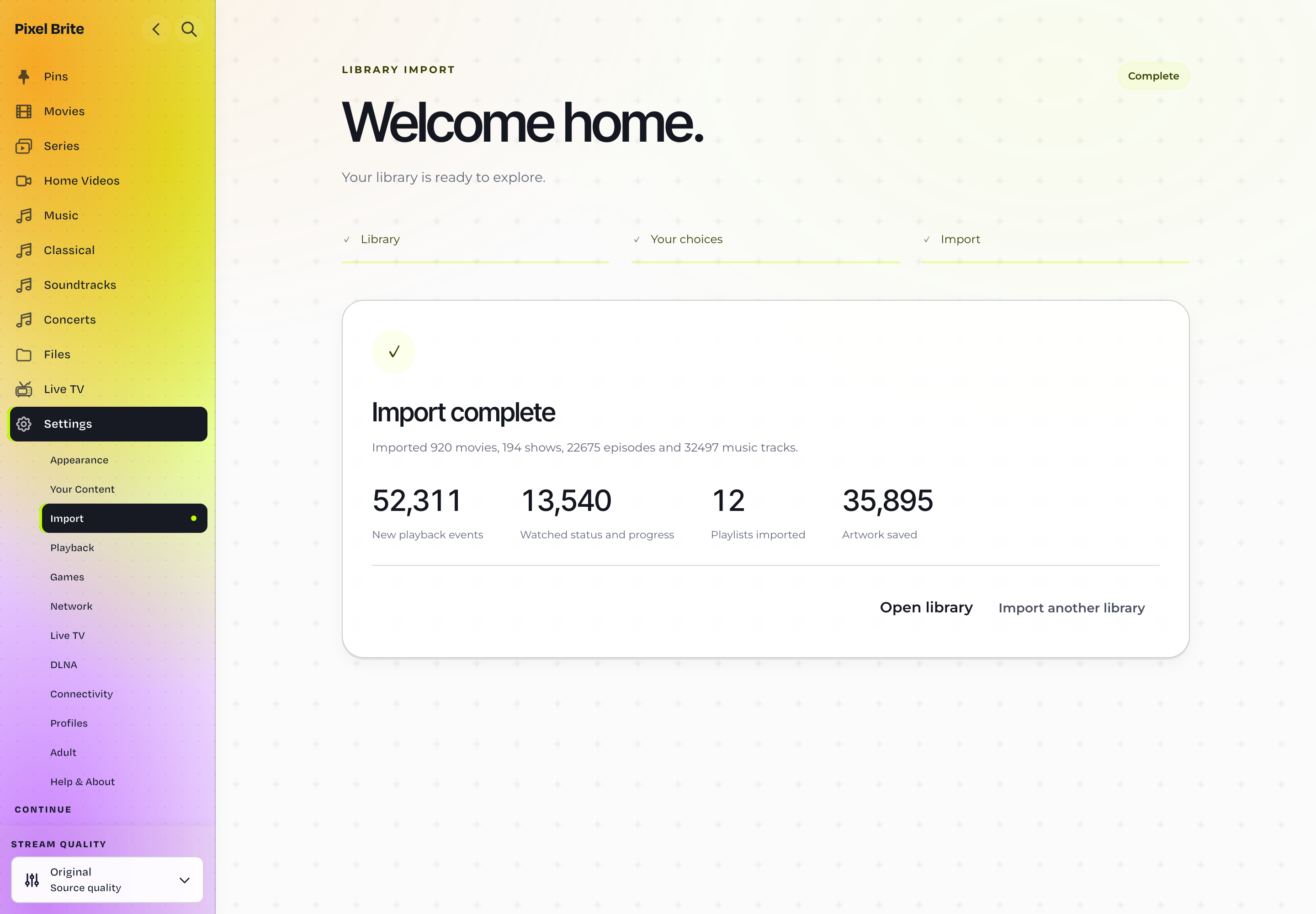
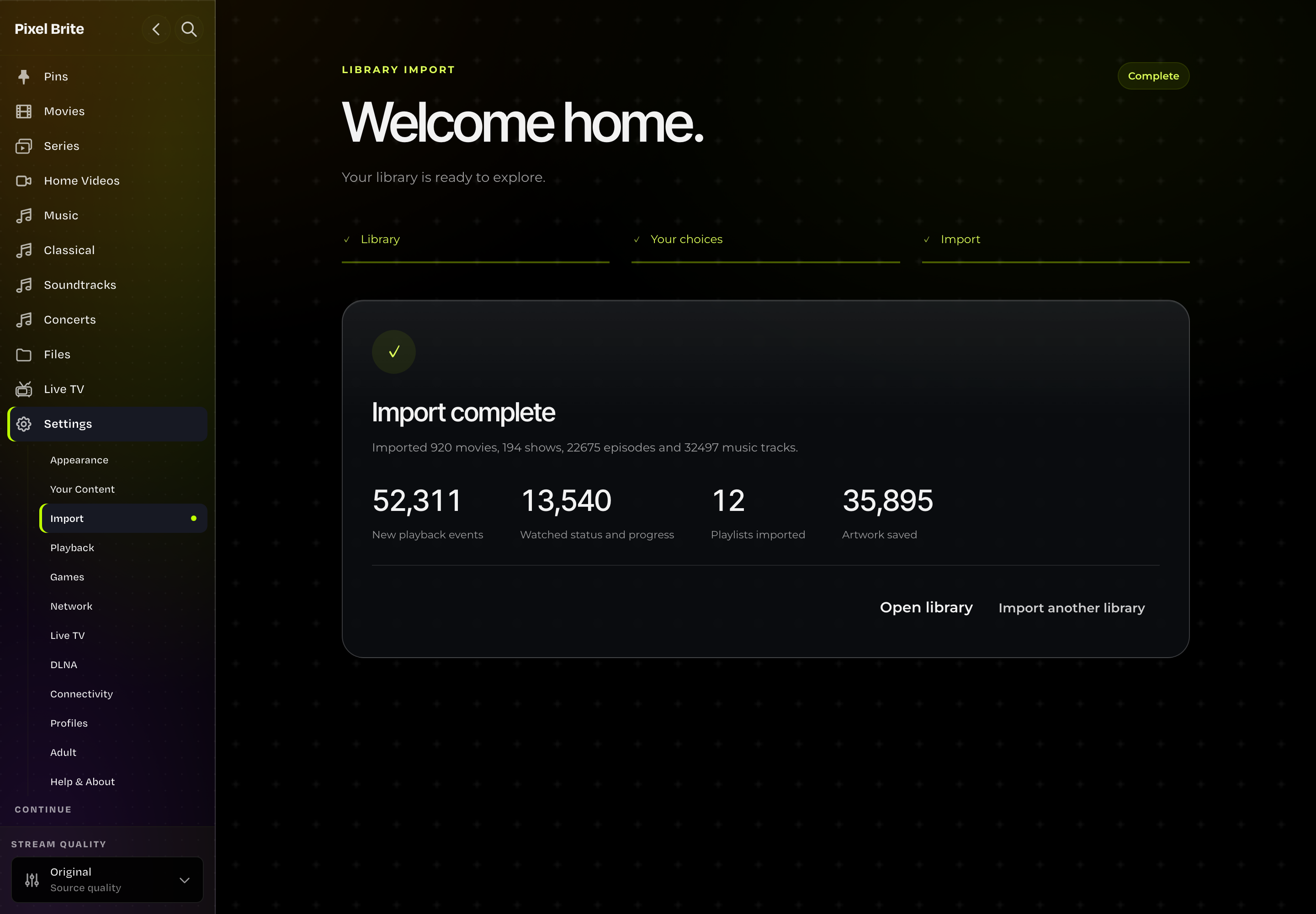
Select Review import, check the selected media counts, mapped folders, profile destinations and warnings, then Import library. You can leave the page and return to the same import. The completion summary shows media, personal data, playlists and artwork saved.
More about importing
What if nothing is found?
Use Choose folder to find the data folder. On another computer or in a container, mount the data and media folders first and give Media Server read access. Paths refer to the server computer.
A database file works too: Plug-in Support/Databases/com.plexapp.plugins.library.db in the Plex data folder, or jellyfin.db in Jellyfin’s data folder.
What history transfers?
Plex supplies the playback events available in its database, along with watched status and resume progress. Jellyfin supplies watched status, play counts and resume progress; its database does not contain a complete playback timeline. Both can supply ratings and favorites for the profiles you map.
When is the Plex server URL needed?
If the database lacks match details, the importer can ask a running Plex server. It detects a local server automatically. For Plex elsewhere, including outside a container, enter Plex server URL.
What happens to accounts and access?
Choose an existing profile, create one, or skip each person. Use separate profiles to keep history, ratings, progress and playlists separate, or the same profile to combine them. New profiles can access the imported libraries; existing permissions stay unchanged. Passwords and device access don’t transfer.
Explore ProfilesWhich playlists transfer?
Manual playlists transfer for the profiles and media you choose. Item order and repeated entries are preserved. Source smart-playlist rules don’t transfer.
What if a title has missing details?
It stays in the library with its source information and available artwork. Missing details don’t trigger a new match. Episode titles and numbering stay intact, including episodes that share one file.
Can I repeat an import?
Yes. With the same source and profile choices, profiles, history, playlists and artwork are reused. Saved profile mappings still work if a Plex or Jellyfin profile is renamed. If a database copy is missing its server identity, choose the source you imported before when prompted. Reloading a prepared import restores your folders, exclusions, profiles and playlist choice.